Getting Started

Your Journey to an Awakened Home

The GrandeurSmart Gateway Onboarding Guide

Set up your estate kit, secure your cloud account, and connect every device in under 15 minutes. Follow our step-by-step guide to transform your home into a fully connected smart ecosystem.

â˜ī¸Cloud + Local Access
🏠Room-by-Room Mapping
📡Multi-Protocol Support
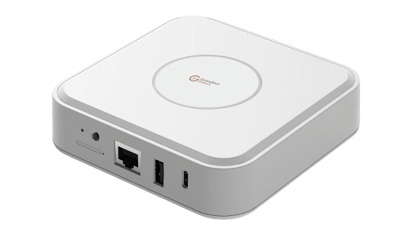
GrandeurSmart Gateway Hub

GrandeurSmart Estate Gateway

Before You Start

Preparation Checklist

Before beginning the onboarding process, ensure the following conditions are met for a smooth setup experience.

⚡

Gateway Powered On

Ensure your GrandeurSmart Gateway is connected to power and turned on.

đŸ“ļ

Connect to Gateway WiFi

Connect your device to the Gateway WiFi network (SSID: dsgw-****) using the username and password provided in your user manual pack, or ensure your mobile phone is on the same network as your router and the Gateway.

đŸ”ĩ

Blue Light Indicator

Verify the Gateway shows a Blue Light, indicating it is successfully connected to the internet.

Phase 1

App Registration Process

01

Download GrandeurSmart App

Download the GrandeurSmart app from the Android Play Store or Apple iOS App Store and open it.

02

Continue to Setup

Open the GrandeurSmart Mobile app and click on "Continue" to proceed with the setup.

03

Select Your Server

Choose your preferred server from the list provided based on your geographic location.
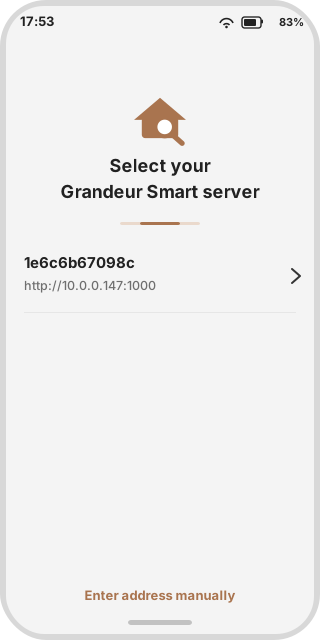
Server Selection Screen
04

Create Your Smart Home

Click on "CREATE MY SMART HOME" to begin. You will be redirected to a cloud login page.
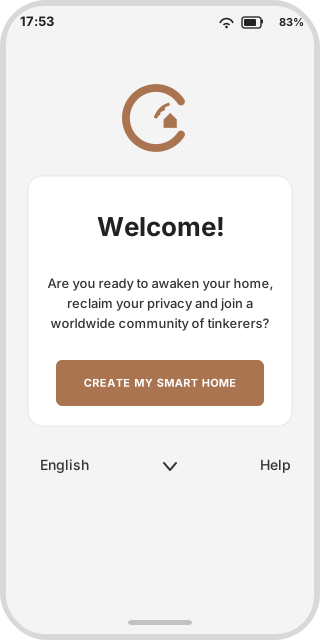
Create Smart Home Button
05

Create Cloud Account

If you don't have an existing account, select "Don't have an account yet? Sign up for a new one!"
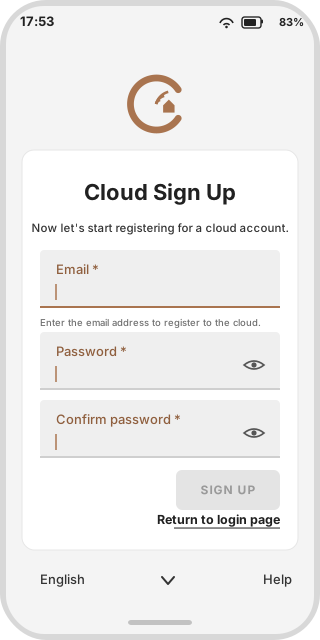
Cloud Account Signup

Sign up by entering your Email, creating a Password, and confirming your password. Once done, click Sign Up.

06

OTP Verification

An OTP (One-Time Password) will be sent to your email. Enter this OTP when prompted to complete your cloud account registration.

Enter OTP Code
Verify
Phase 2

Login Procedure

Confirm that the registration process has been successfully completed before proceeding.

01

Open GrandeurSmart App

Download and open GrandeurSmart from Android Play Store or Apple iOS App Store.

02

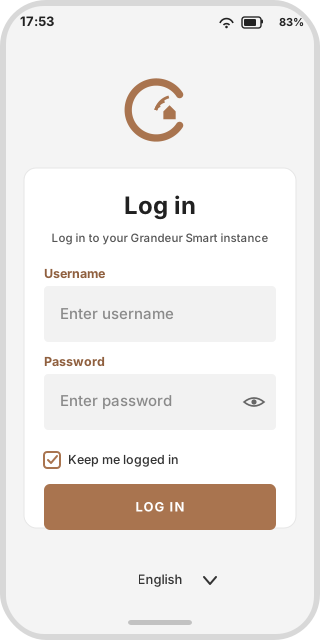
Login with Your Credentials

Login using the username and password created for your User account during registration.

Login Screen
âš ī¸Note: These credentials are NOT the Cloud Account details.
â˜ī¸Cloud AccountSystem Access
👤User AccountDaily Login

Phase 3

Adding a New User

Add family members or other users to your smart home with customizable permissions.

01

Access Settings

From the GrandeurSmart page, locate the taskbar on the left-hand side and select Settings.

02

Navigate to People

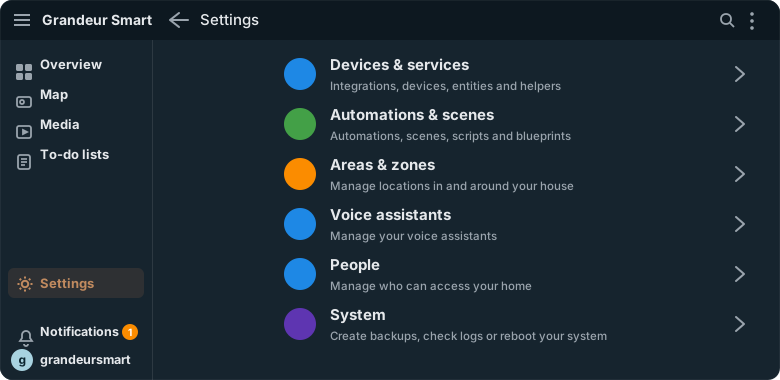
From the settings menu, select "People" to manage household members.

Settings - People Menu
03

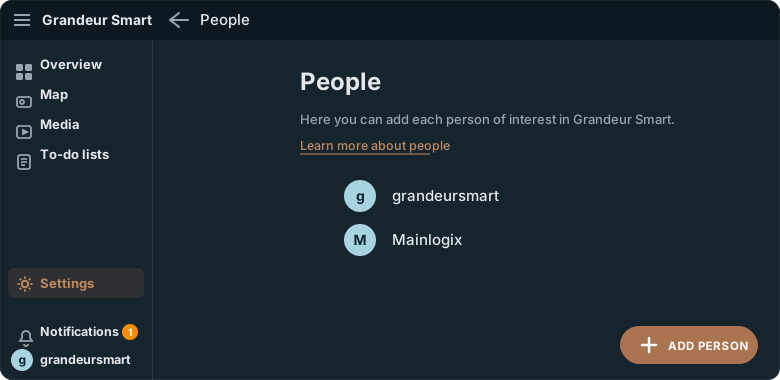
Add New Person

At the bottom right corner of the page, select "Add Person".

Add Person Button
04

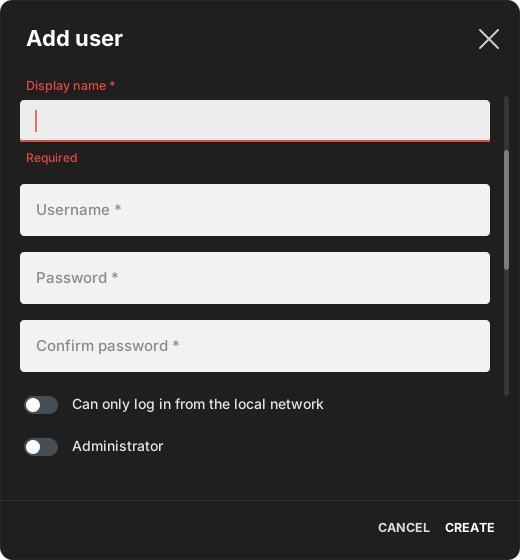
Configure User Details

Enter the name to display on the person's device, add a picture if desired, and select the devices to link.

Person Details Configuration
OR

Click "Allow the person to login", fill in the required details, and provide these credentials to the person.

👑You can make the person an Administrator or a regular user.

Phase 4

User Dashboard Setup

By default, the dashboard is empty for a new device. Follow these steps to create your customized dashboard.

01

Open Settings

Open the app and select Settings from the left side menu.

02

Select Areas & Zones

Navigate to the Areas & Zones section to organize your home layout.

Areas & Zones Settings
03

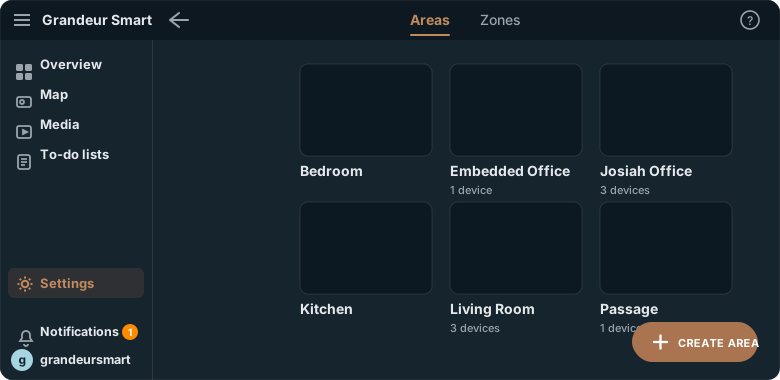
Create Your Areas

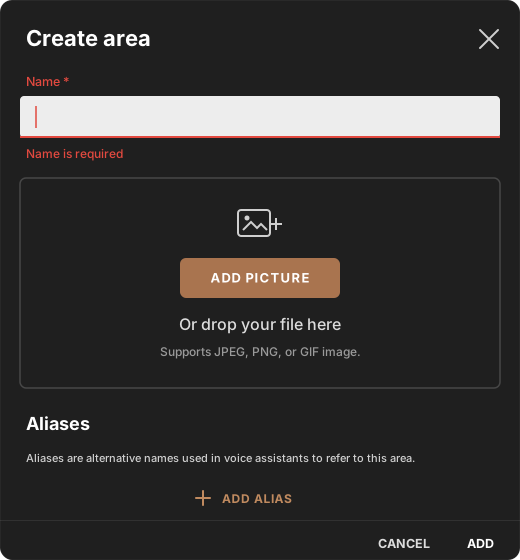
Click "Create Area" at the bottom left corner. Name the area and optionally add an alias for voice control purposes.

Create Area Dialog
04

View Your Dashboard

After creating areas, navigate to the dashboard by selecting "Overview" from the left side to see all your areas.

đŸ›‹ī¸Living Room
đŸŗKitchen
đŸ›ī¸Master Bedroom

Phase 5

Device Pairing

Pair your smart devices with the GrandeurSmart Gateway and add them to your dashboard.

01

Access Device & Settings

Click on Settings and select "Device & Settings". Know the type of device you want to configure.

02

Select Device Type

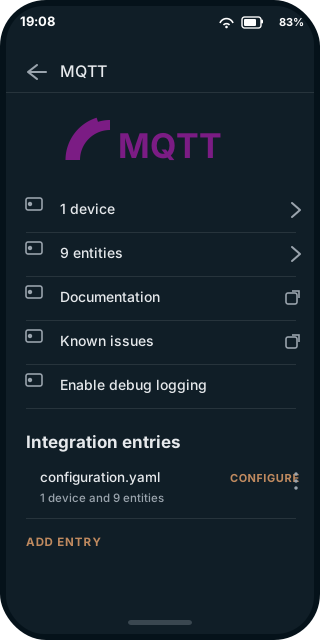
Verify if your device type is listed under the configured options (e.g., MQTT, Zigbee, Z-Wave).

Device Settings - MQTT
03

Discover Devices

Click the number of devices under the device type (e.g., "12 devices"). Ensure the device is powered and set up; it will automatically search for the device.

04

Configure & Rename

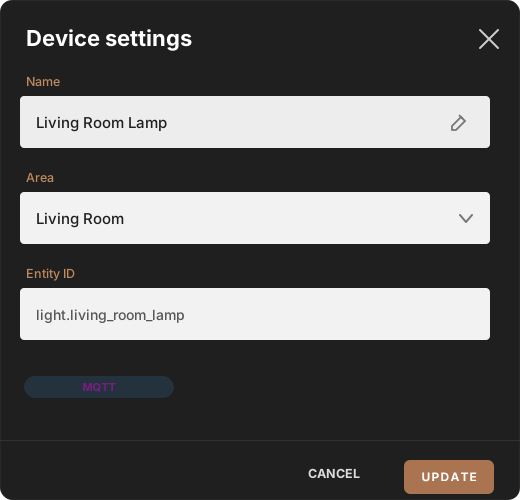
A list of available devices will appear. Click the desired device to confirm the type and location. Then click the edit icon to rename and select the area where it is located.

Edit Icon

Edit Icon

Device Configuration
05

Add to Dashboard

Select "ADD to dashboard" to include the device in your home overview.

+ ADD to Dashboard

Phase 6

New Device Integration

Integrate new brands and device types into your smart home ecosystem.

01

Open Settings

Open the app and select Settings from the left side menu.

02

Select Device & Services

Navigate to the Device & Services section to manage integrations.

03

Add Integration

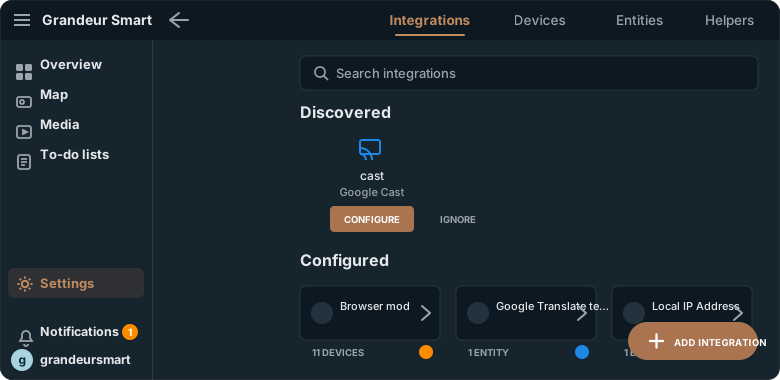
Click "Add Integration" to browse available device integrations.

Add Integration Button
04

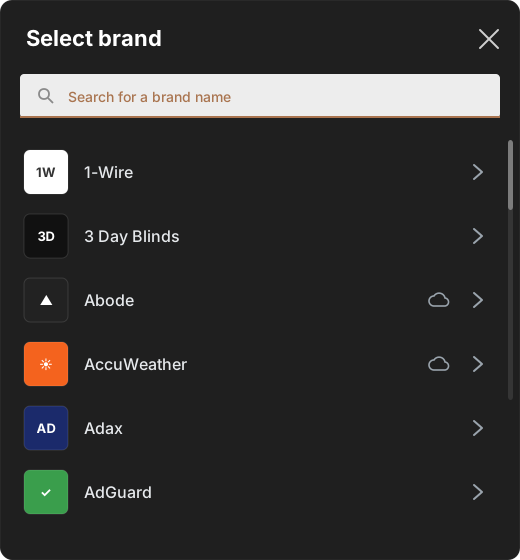
Search & Configure

Search for the device you want to configure and follow the provided instructions.

Search Device Integration
â„šī¸Integration specifics depend on the device brand and protocol.

Supported Ecosystem

Connectivity Overview

GrandeurSmart supports a wide range of protocols and standards to ensure seamless integration with your existing devices and future-proof your smart home.

Protocol TypeCommon Use Case
LoRaWAN / LTELong-range sensors and remote connectivity
Zigbee / Z-WaveLocal mesh networking for devices
Matter / HomeKitCross-platform integration with major voice assistants
MQTTLightweight messaging for IoT sensors and actuators
WiFi / BluetoothDirect device connectivity and local control

Troubleshooting

Frequently Asked Questions

How do I reset my Gateway?

To reset your GrandeurSmart Gateway:

  1. Locate the reset button on the back of your Gateway
  2. Press and hold the reset button for 10 seconds
  3. Wait for the LED to flash rapidly (indicating reset mode)
  4. Release the button and wait for the Gateway to reboot
  5. The LED will turn solid blue when ready for setup

What do the LED indicators mean?

Solid Blue: Connected to internet, ready to use
Solid Green: Powered on, booting up
Flashing Yellow: Connecting to network
Red: Error or no connection

How do I connect my Gateway to the internet?

You have three options to connect your Gateway:

  • Ethernet: Connect the included Ethernet cable from your router to the Gateway's LAN port
  • WiFi: Configure WiFi through the GrandeurSmart app during initial setup
  • LTE (if supported): Insert a compatible SIM card into the SIM slot

The app can't find my Gateway. What should I do?

  1. Ensure your phone is connected to the Gateway WiFi (SSID: dsgw-****)
  2. Check that the Gateway LED is solid blue
  3. Restart the GrandeurSmart app
  4. If using router connection, ensure Gateway and phone are on the same network
  5. Try resetting the Gateway and starting the setup again

My device won't pair with the Gateway

  1. Ensure the device is in pairing mode (check device manual)
  2. Move the device closer to the Gateway during pairing
  3. Check if the device protocol (Zigbee, Z-Wave, etc.) is supported
  4. Restart both the device and Gateway
  5. Remove and re-add the integration in Settings → Device & Services

How do I perform a factory reset?

Warning: This will erase all settings and paired devices.

  1. Press and hold the reset button for 30 seconds
  2. The LED will flash rapidly then turn off
  3. Wait for the Gateway to fully restart
  4. Reconfigure the Gateway as a new device